The Full Benefits of a Windows License Linked to Your Microsoft Account
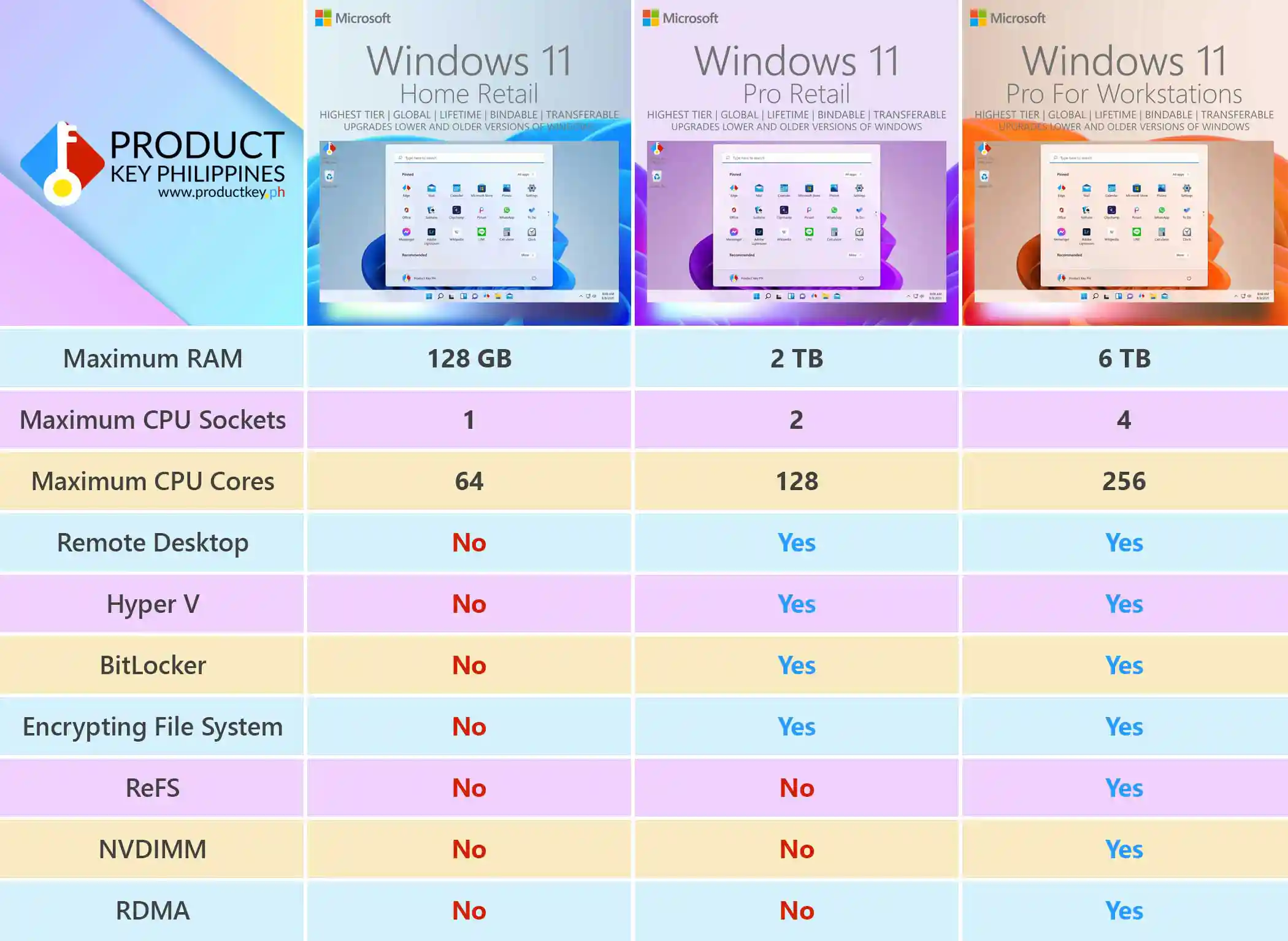
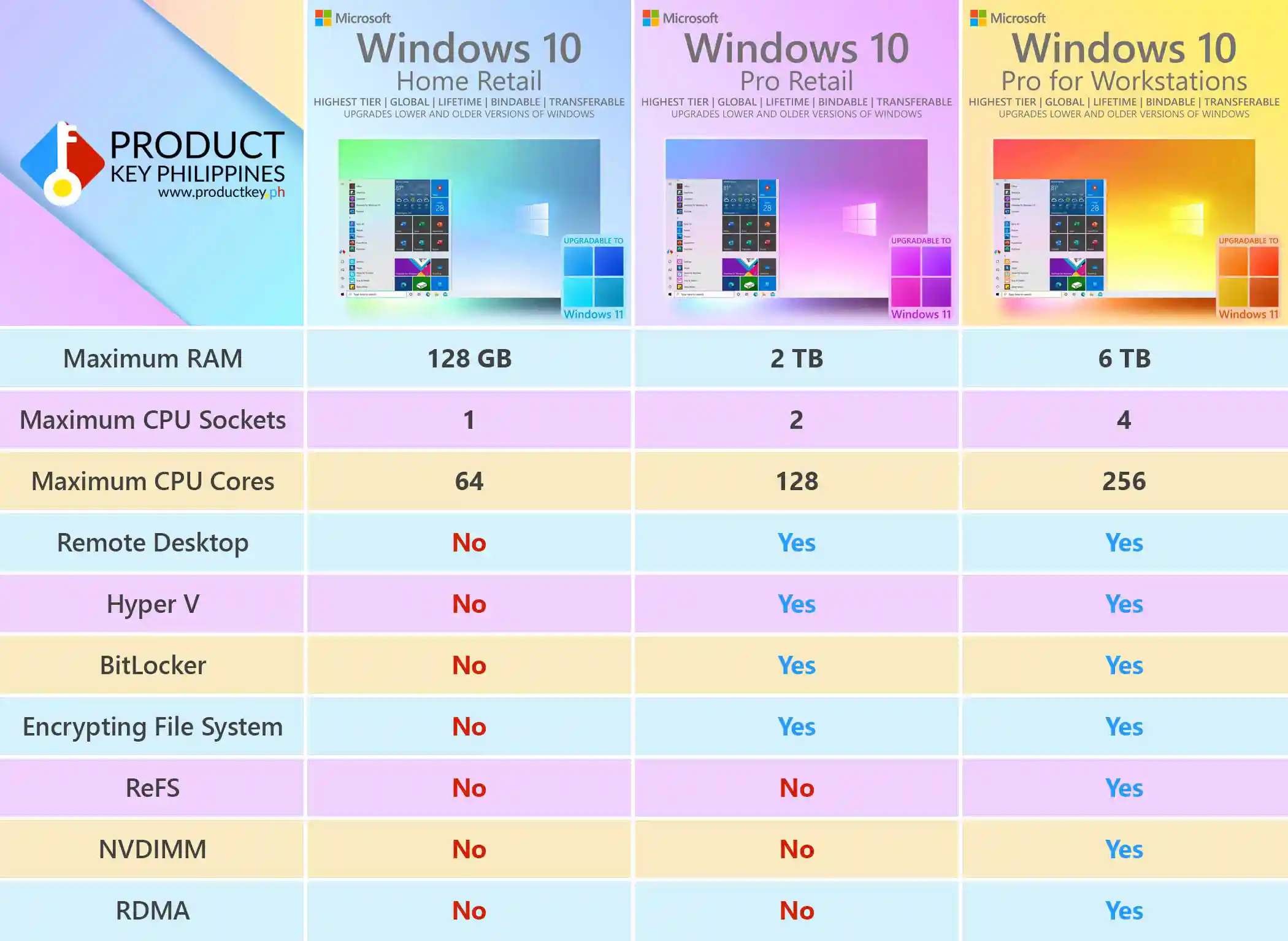
Enjoy lasting value from your Windows license with Microsoft account linking, convenient reinstallation, and continued use after minor hardware upgrades. Our highest tier Windows license, Windows Pro for Workstations Retail, also supports transferring your license to another PC.
Your purchase from Product Key Philippines includes an official download link, a step-by-step setup guide, an official sales invoice, and 24/7 live chat support to help you get started.
1. Link Your Windows License to Your Microsoft Account
After activating Windows, link your digital license to your personal Microsoft account. This helps you use Microsoft’s Activation troubleshooter when Windows needs reactivation.
To check your activation status:
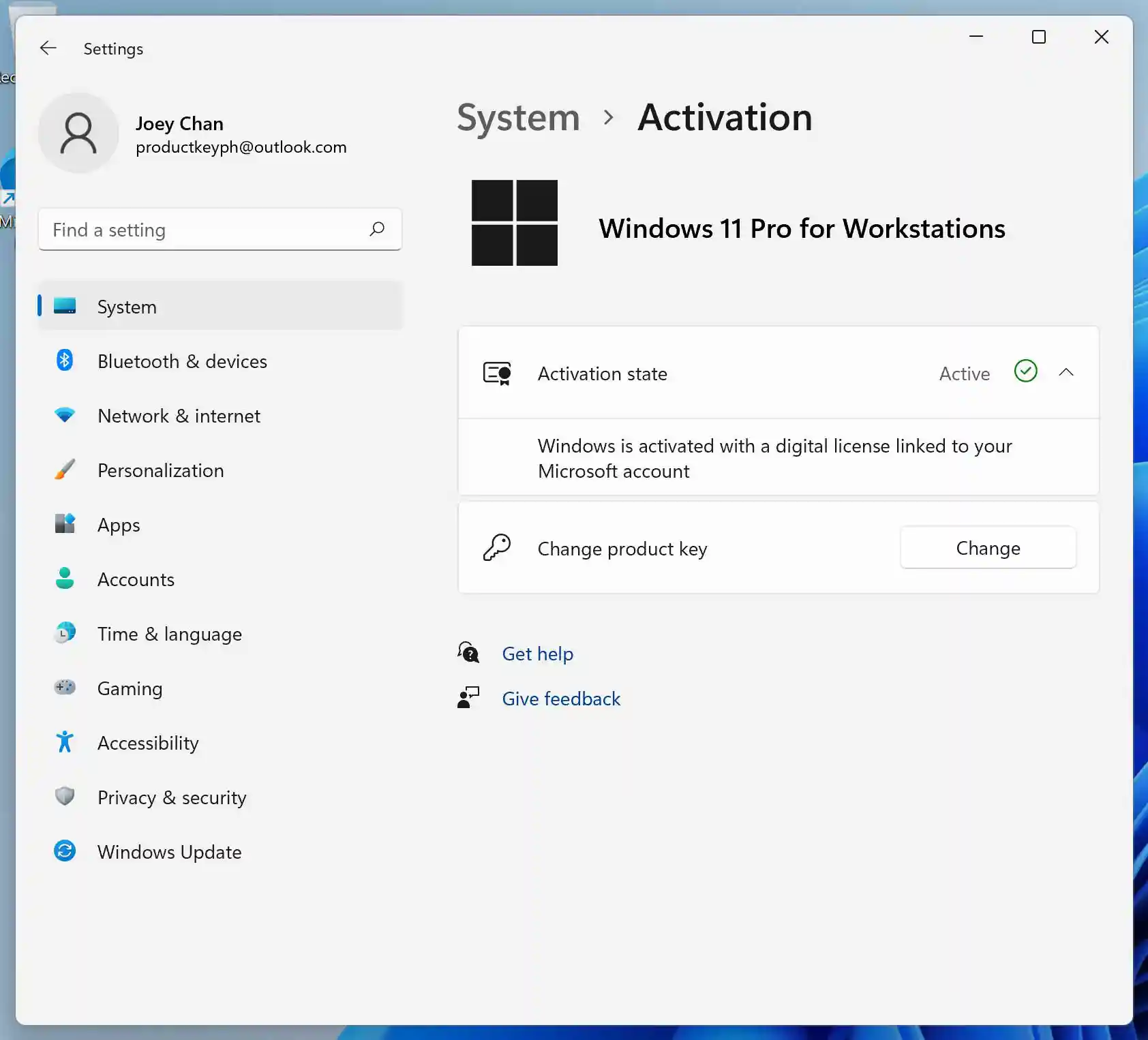
- Windows 11: Open Settings > System > Activation.
- Windows 10: Open Settings > Update & Security > Activation.
Once linked, the activation status should read: “Windows is activated with a digital license linked to your Microsoft account.” Use this same account when reinstalling or reactivating Windows.
2. Reinstall, Reuse, and Upgrade with Confidence
Give your PC a fresh start without buying another Windows license. Reinstall Windows on the same licensed computer after reformatting, using the edition covered by your purchase—for example, Windows 11 Pro for a Windows 11 Pro license.
Before reinstalling, confirm that Windows is activated and your digital license is linked to your Microsoft account. After installation, connect to the internet and sign in to that same account. Your existing digital license should reactivate the matching Windows edition automatically.
Your license also supports continued use after minor hardware upgrades, including RAM, an SSD or hard drive, a graphics card, or a compatible processor. Enjoy more value from your purchase as you maintain and improve your PC.
For our standard Windows Home and Pro licenses, replacing the motherboard generally requires a new Windows license, and a different PC requires its own license.
Keep your product key and purchase details handy. Our 24/7 live chat support can assist with reinstallation, reactivation, or choosing a license for your next PC.

3. Upgrade and Transfer with Pro for Workstations
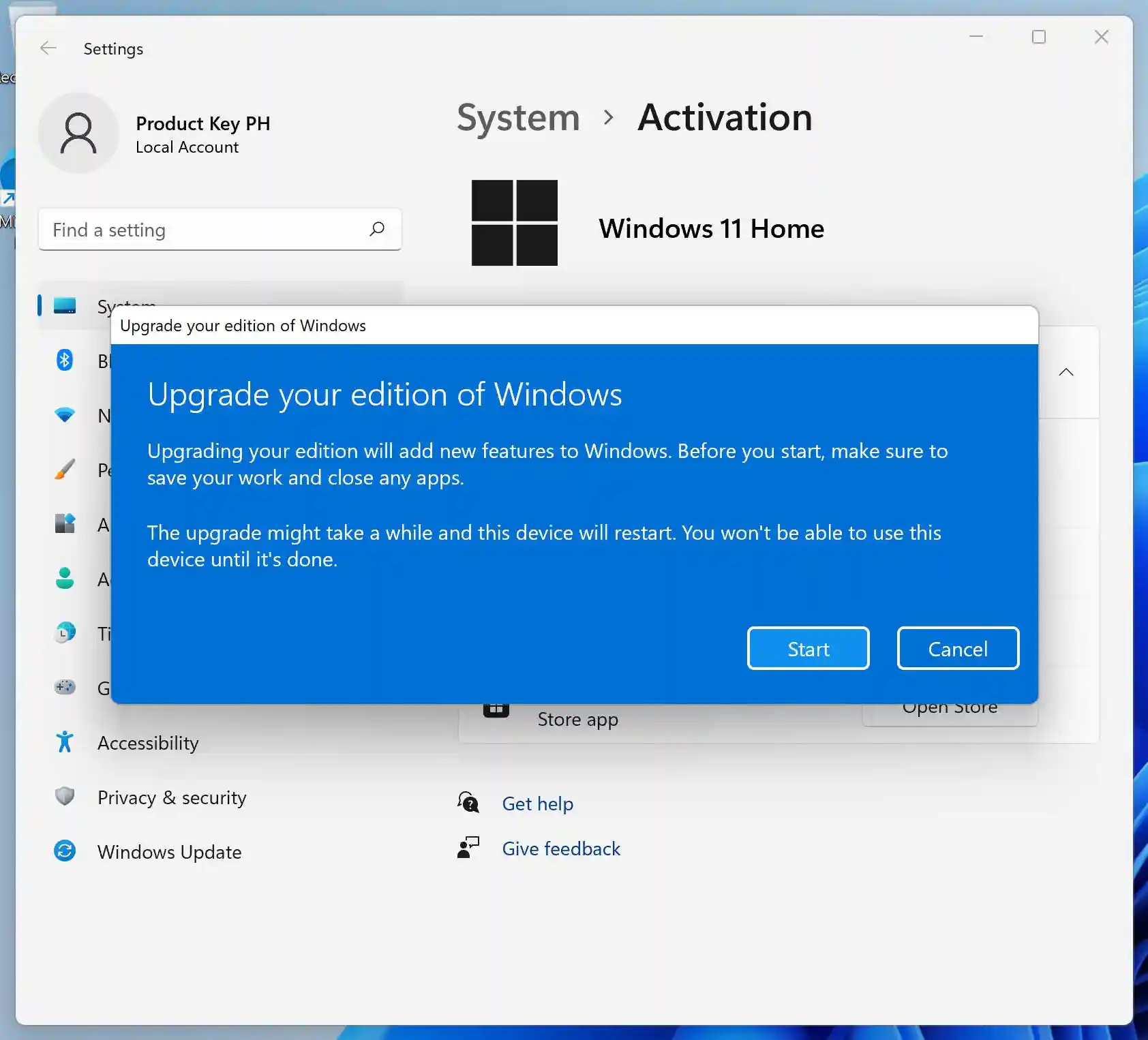
Upgrade your existing Windows 11 Home or Windows 11 Pro installation to Windows 11 Pro for Workstations using your purchased license. Open Settings > System > Activation, select Change product key, enter your Workstations key, and follow the upgrade instructions.
Take your license with you when it’s time for another computer. Our Windows 10 and Windows 11 Pro for Workstations retail licenses let you move your license to another compatible PC running the corresponding Workstations edition.
Use the license on one PC at a time, removing the licensed copy from the previous computer when you transfer it.
Keep access to your linked Microsoft account. Our 24/7 live chat support can guide you through upgrading, transferring, and reactivating your Workstations license.
4. Manage Your Windows Devices in One Place
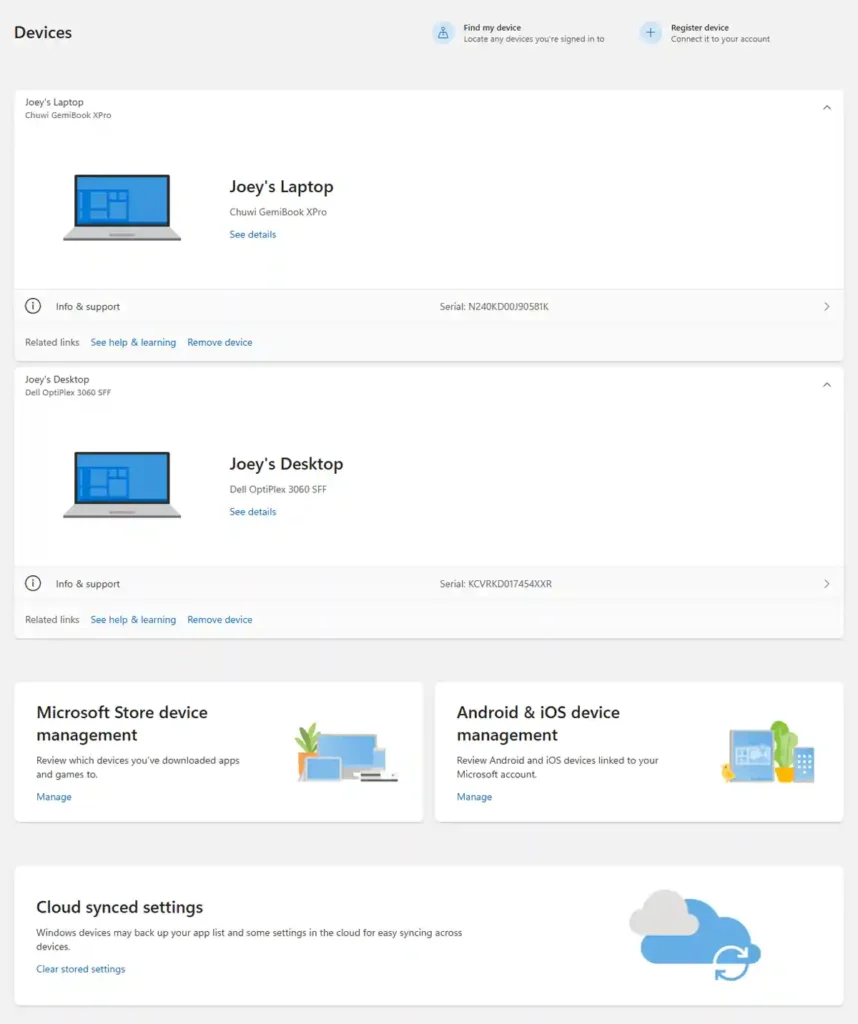
Keep your device information within easy reach. Sign in to your Microsoft account’s Devices page using the account associated with your PC.
From the dashboard, you can review available device information and access supported management tools. On compatible devices with Find my device enabled, you can also access options to locate or remotely lock a missing PC.
The following sections explain how to prepare your PC for location tracking and remote locking.
5. Locate a Missing Windows PC
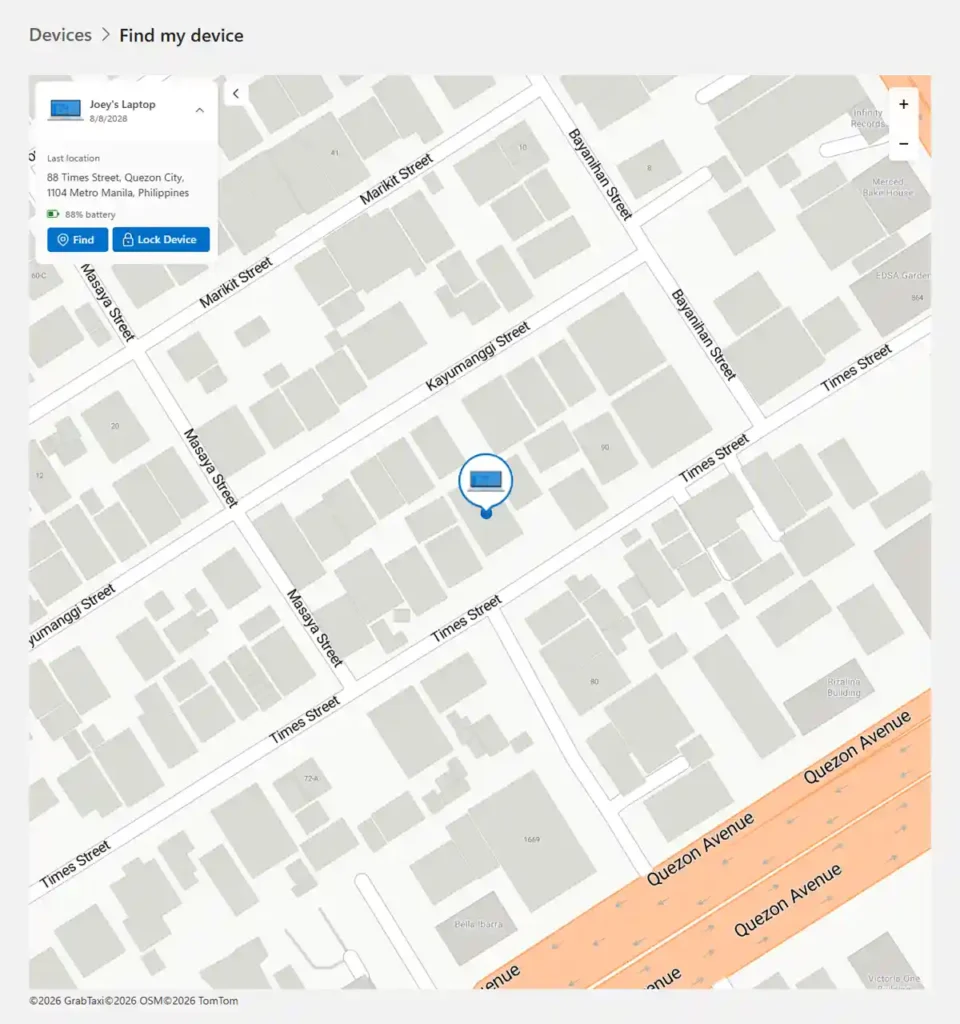
Find my device can help you locate a lost or stolen Windows laptop or PC. Set it up beforehand: sign in to Windows with your personal Microsoft account, ensure that account has administrator access, and enable Find my device and location services.
If your PC goes missing, sign in to your Microsoft account’s Devices page, select Find my device, choose your PC, and select Find to view its available location on a map.
Location availability and accuracy depend on the device’s settings and connectivity.
6. Remotely Lock a Missing PC
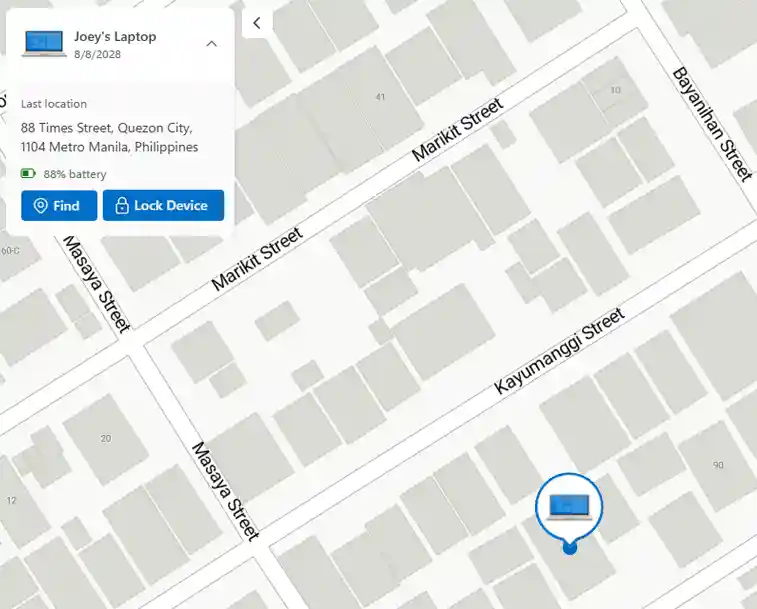
Help protect your computer even when it’s out of reach. Sign in to your Microsoft account’s Devices page, locate your PC through Find my device, then select Lock > Next and follow the instructions.
Find my device must be enabled beforehand, as described above. Your PC needs an internet connection to receive the lock request.
7. Stay in Control of Your PC’s Security
Access important protection settings in one place with the built-in Windows Security app. Open Start, search for Windows Security, and review areas such as Virus & threat protection, Account protection, Firewall & network protection, and Device security.
Windows Security brings these controls together and highlights areas that need attention. Follow the recommended actions and keep security notifications enabled so you can respond to relevant alerts.
8. Restore Your Settings and Connect Your Phone
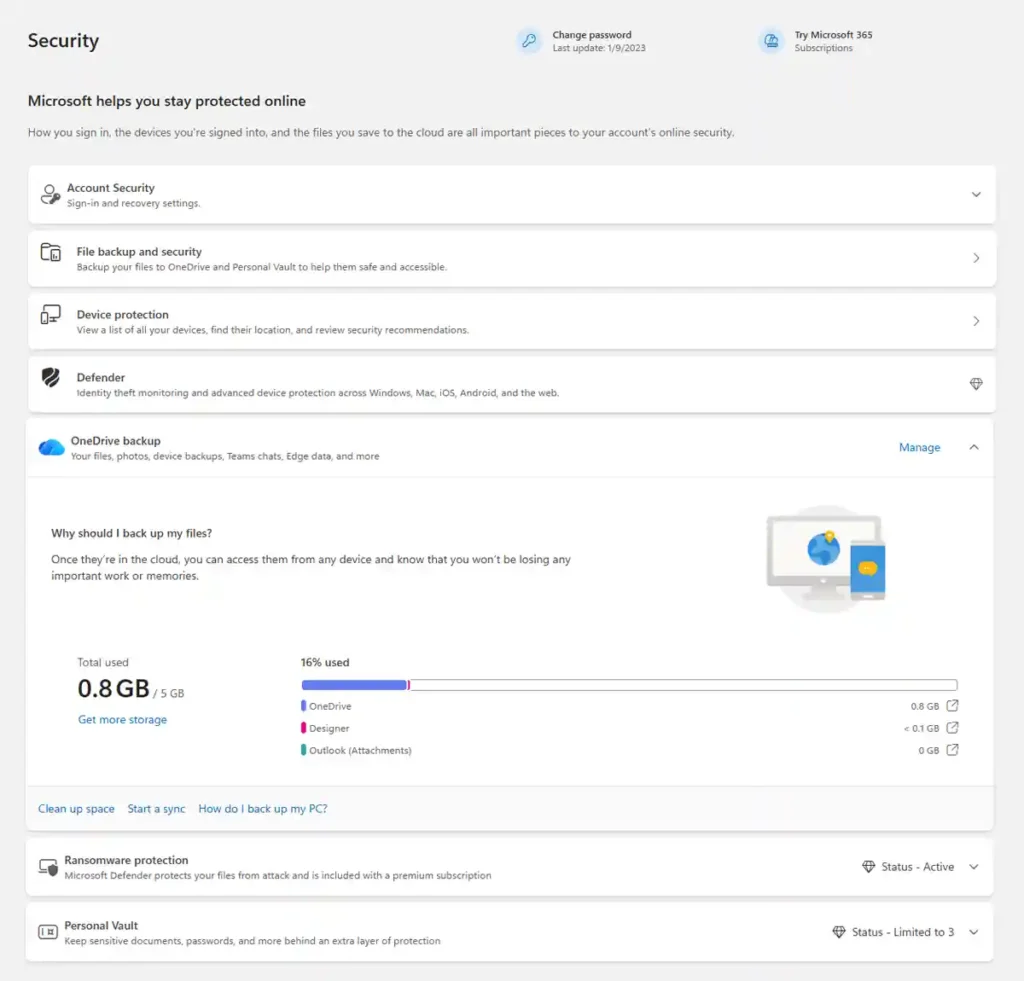
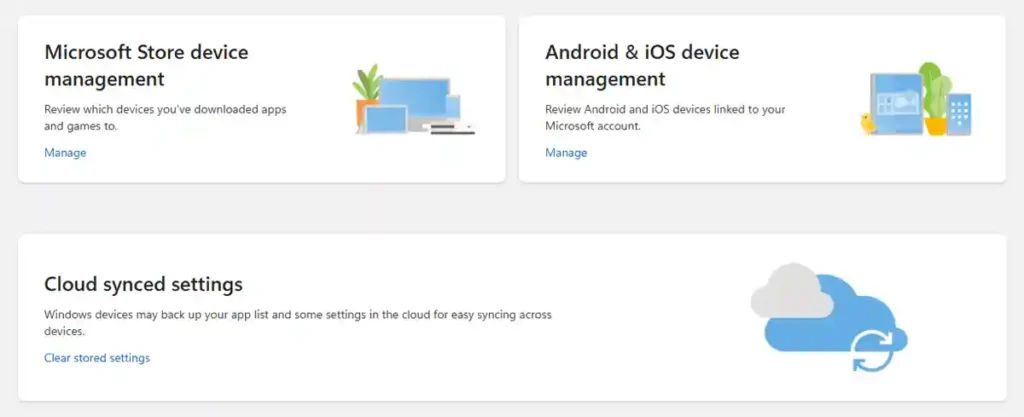
Make Windows feel familiar when you set it up again. With Windows Backup enabled, your personal Microsoft account can back up selected preferences, including personalization, language and accessibility settings, for use on compatible Windows PCs signed in to the same account.
On Windows 11, open Settings > Accounts > Windows backup to choose the settings you want to remember.
You can also use Phone Link to connect a supported Android phone or iPhone and access features such as calls, messages and notifications from your PC. Available features depend on your phone, Windows version and the permissions you enable.
Choose the Windows License That Fits Your Needs
Enjoy Microsoft account linking, convenient reinstallation, and continued use as you maintain and upgrade your computer. Our Windows 11 Pro for Workstations license also lets you upgrade from Windows 11 Home or Pro, while our Pro for Workstations retail licenses provide the flexibility to transfer your license to another PC.
From choosing your Windows edition to completing activation, our team is ready to help. Chat with our 24/7 support team.