How to Install Microsoft Office 2016, 2019 and 2021 Offline – Step-by-Step Guide (2027)
Office Professional Plus 2016, 2019 and 2021 are desktop Office suites for Windows PCs. This guide explains how to install and activate your purchased version using an offline installer. An internet connection is required to download the installer and activate Office. Once activated, you can create and edit local documents offline.
IMPORTANT
Before installing, save your work and close all Office applications. If you are replacing an existing Office installation or trial, uninstall that version first to help prevent installation and activation conflicts.
For assistance, follow the official Office uninstall instructions.
Restart your computer after uninstalling Office, then proceed with the installation below.
1. Download the correct version of Office using the official Microsoft links below. Select the version that matches your product key. Installer sizes vary by version, and download time depends on your internet connection.
A. Office Professional Plus 2021: https://officecdn.microsoft.com/db/492350F6-3A01-4F97-B9C0-C7C6DDF67D60/media/en-US/ProPlus2021Retail.img
B. Office Professional Plus 2019: https://officecdn.microsoft.com/db/492350F6-3A01-4F97-B9C0-C7C6DDF67D60/media/en-US/ProPlus2019Retail.img
C. Office Professional Plus 2016: https://officecdn.microsoft.com/db/492350F6-3A01-4F97-B9C0-C7C6DDF67D60/media/en-US/ProPlusRetail.img
2. Once the download has finished, locate the disc image file in your Downloads folder. Right-click the file and select Mount, or double-click it to open the virtual drive.

3. Open the Office folder inside the mounted drive. Right-click Setup32 to install 32-bit Office or Setup64 to install 64-bit Office. Select Run as administrator, then click Yes when Windows asks to allow changes to your device.

4. Installation time varies depending on your PC. Keep the installer open until setup finishes. An internet connection is not required during installation when using the complete offline installer.

5. Once Office is installed, click Close.

6. Open an Office application, such as Word. When the activation prompt appears, select the option to enter your product key. If a sign-in screen appears, press Back and look for Enter a product key instead.

7. An internet connection is required during activation. Enter the 25-character product key supplied with your order. Click Activate Office and follow the on-screen instructions to complete activation. Once activated, Office can be used offline.

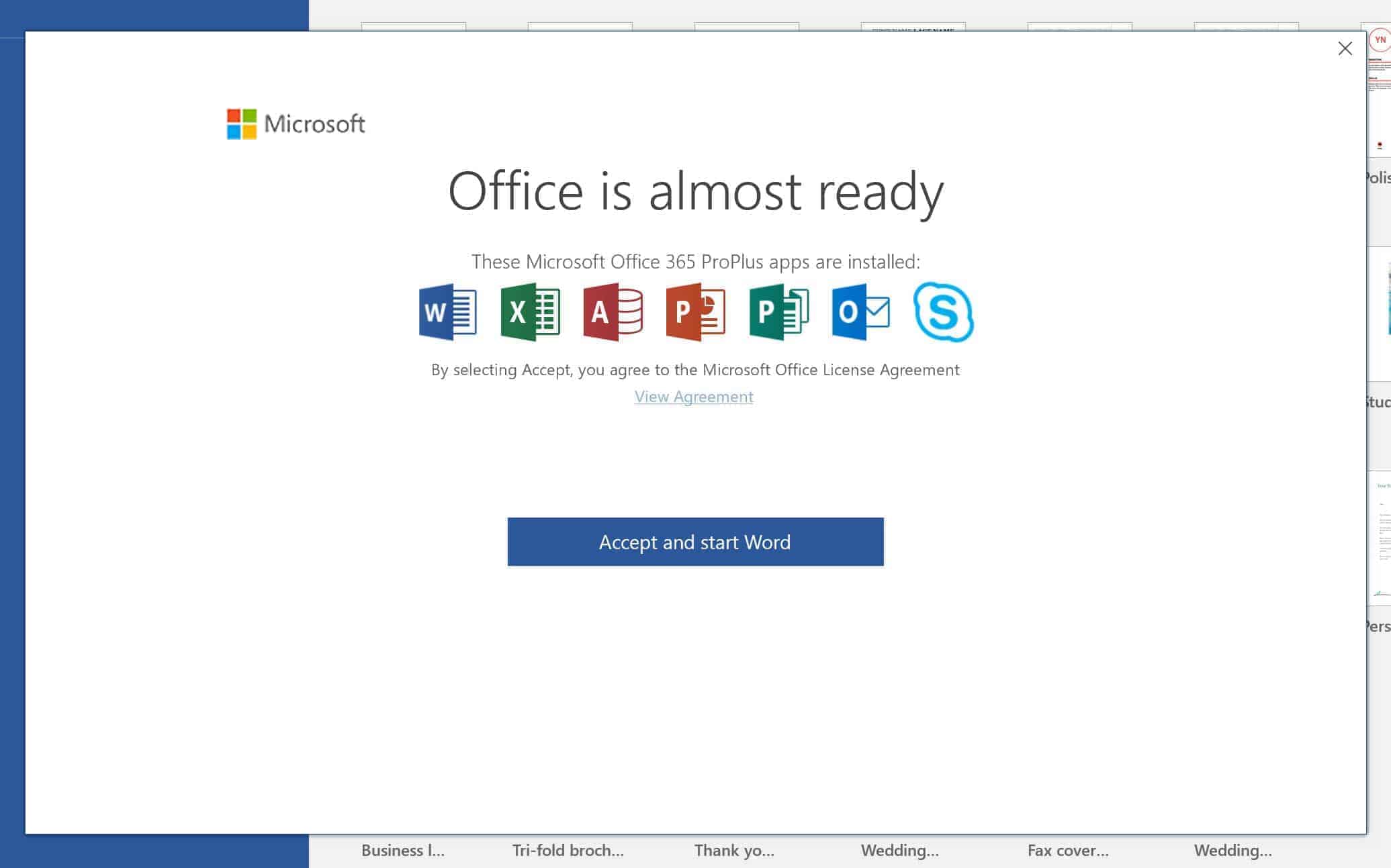
8. Read and accept the Microsoft Office License Agreement when prompted.
9. Open Word or Excel and go to File → Account. Under Product Information, confirm that your purchased Office version appears and shows Product Activated. Congratulations! Your Office Professional Plus installation is now ready to use!